A Housecall Pro to TradesWork switch takes about six weeks if you do it properly: two weeks of exports, phone porting and a sandbox test, then two to four weeks running both systems side by side. Customers, job history, invoices, the price book and service plans move over from files you export. Cards on file, equipment, photos, estimates and automations need their own plan.
This page shows every step: the Housecall Pro clicks for each export, the real TradesWork screens you'll see when you bring the files in, and what your team sees on day one. It's written by TradesWork, so read it with that in mind. We've tried to be exact about what the importer does and doesn't do. Housecall Pro facts come from its own pricing page, help center and terms, checked October 15, 2026.
Is this switch right for you?
Be honest with yourself first. Housecall Pro is cheaper for a solo operator or a small crew: Basic is $59 a month for one user and Essentials $149 for five users, billed annually.1 It has consumer financing on every plan, a long track record and a large user base. TradesWork is new in 2026, runs in far fewer shops, doesn't have financing lenders connected yet, and has no route-day scheduling for lawn, pest or pool.
The switch tends to make sense for HVAC, plumbing and electrical shops of 3 to 50 techs where service plans and replacements drive revenue, and where office seats keep pushing you up a plan. Recurring service plans are a Max feature on Housecall Pro, at $299 a month billed annually for eight users and $35 for each extra user.1 On TradesWork, memberships start at Pro ($99 per tech or sales seat a month billed annually), and office and view-only users are free. The full side-by-side is on TradesWork vs Housecall Pro.
The whole move on one page
Week -2
Decide, date it, export
Find your Housecall Pro renewal date. Start the TradesWork trial. Run every export, ask Support for a service plan list, and start the phone port.
Week -1
Sandbox import
Drop your files into a sandbox company. Fix the rows it lists, check customers, prices and memberships with your office team. Rebuild templates and checklists.
Week 1
One crew live
Import into your real company. One crew books, works and invoices in TradesWork. Connect QuickBooks with a cut-over date and turn off Housecall Pro's sync.
Week 2
Office and cards
Office books in TradesWork. Send card links to service plan customers ahead of their billing dates. Re-drop fresh exports.
Week 3
Everyone
Remaining crews move. Swap booking and review links. Start membership billing in TradesWork customer by customer.
Week 4
Cancel
Port shows done, memberships bill in TradesWork, final exports archived. Start the Housecall Pro cancellation before renewal.
What moves, and what stays behind
Each Housecall Pro file, and what it becomes in TradesWork:
- customers.csvImportsCustomers and service locationsName, phones, email, address, tags and notes. Matched by Housecall Pro customer ID, or by name and address.
- jobs.csvImportsPast jobsJob number, status, dates, description and the old total. Job types and lead sources become job types and campaigns.
- invoices.csvImportsInvoices with paid amountsPaid amounts are recorded as payments marked as imported, so balances match. An invoice with no job gets a completed history job.
- price book (services + materials)ImportsPrice bookName, description, category, price and cost; services and materials kept apart.
- service-plans.csvImportsMemberships, billing heldPlan name, customer, dates, price and billing frequency. Nothing bills until you switch billing over.
- estimates.csvKeep as archiveYour archiveHousecall Pro estimates aren't imported yet.
- equipment.csv (Property Profile)Keep as archiveYour archive, then re-enteredAdd equipment by hand or with a spreadsheet.
- payments reportKeep as archiveYour archiveKeep it for reconciling the first month.
- photos and attachmentsKeep as archiveStay in Housecall ProDownload the ones you need before you cancel.
Two files in that list need care. Housecall Pro's help center doesn't describe a dedicated invoice export or a bulk service plan export; it describes reports for both.23 The Housecall Pro export guide shows the report drill-down export to try for invoices and the written request to send Support for service plans. If you can't get an invoice file, your job history still comes across, and the payments report stays as your record of what was paid.
Step 1: Export from Housecall Pro
As an Admin, run these.4 Each arrives by email as a CSV. Here's the first one, the customer list, as Housecall Pro's help center describes it:
- 1Customers
- 2Actions
- 3Export
- 4Send file
The rest, in short:
| Export | Housecall Pro click path | Use in TradesWork |
|---|---|---|
| Jobs | Jobs, Edit columns (tick all), Filter (widest dates), Actions, Export, Send file5 | Imports as past jobs |
| Estimates | Estimates, then the same5 | Archive |
| Price book | Settings (gear), Price Book, Services tab, Export; then Materials tab, Export6 | Imports |
| Equipment | Property Profile app, download icon, Send me the File7 | Archive; re-enter |
| Payments | Reporting, Reports, Payments, date range, Generate report8 | Archive |
| Invoices | An invoice report's drill-down table, Export | Imports if you get a file |
| Service plans | Ask Support in writing; reports only3 | Imports if you get a file |
Keep every original file, unedited, in a folder you control. You'll re-run customers and jobs during the side-by-side.
Step 2: Bring it into TradesWork
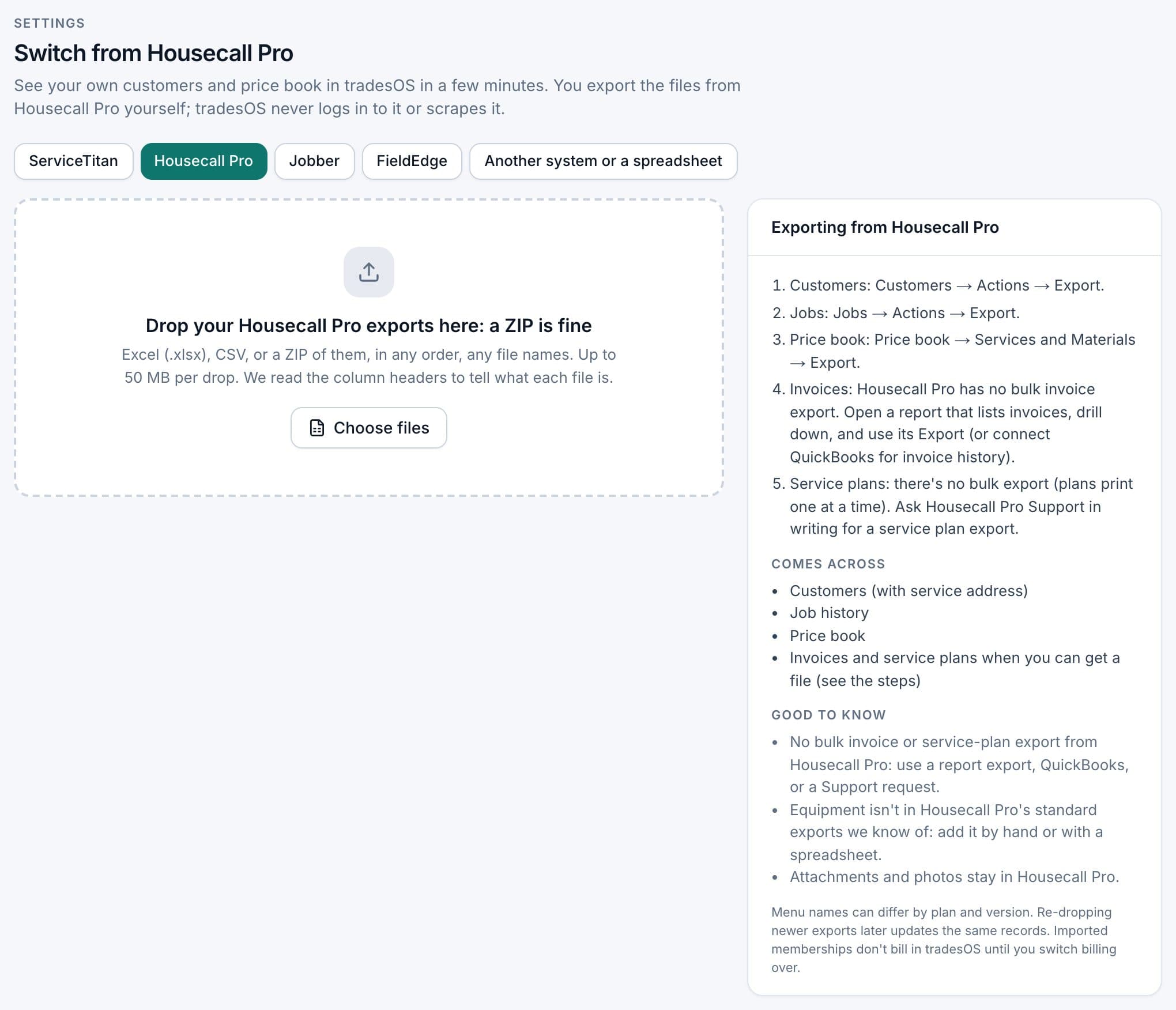
In TradesWork you need the Owner or Admin role. Open Settings, Integrations and go to the import page. These are real TradesWork screens with sample Housecall Pro files; click through the steps.
1. Pick where you're coming from
Press Housecall Pro in the row of source buttons and the page becomes Switch from Housecall Pro. The panel on the right sums up the exports, what comes across and what doesn't. Its menu names are a short version; if they don't match your screens, use the click paths in Step 1.
When the sandbox looks right, go back with Back to your company in the blue sandbox banner, drop the same files again and choose Import into your company.
A few rules make the import go cleanly:
- Drop related files together. Jobs, invoices and service plans link to customers by Housecall Pro customer ID, or by name. Drop the customer export in the same go, so every link resolves.
- Keep the ID columns. If two customers share a name and the file has no customer ID, that row is listed instead of guessed.
- Watch for round numbers. A customer file of exactly 1,000 or 5,000 rows was probably cut off by a filter. Clear filters and export again.
Your team won't have to relearn the menus
TradesWork has four look-and-feel styles. Pick the Housecall Pro style and the menus say Customers, Estimates, Jobs, Invoices and Service plans, laid out the way your office already knows them. Each person picks their own style in the top bar or under Settings, Your Account, Appearance, and the company sets the default. A style changes menu layout and words only: the data, features and reports are the same in every style. Flip between them on real TradesWork screens:
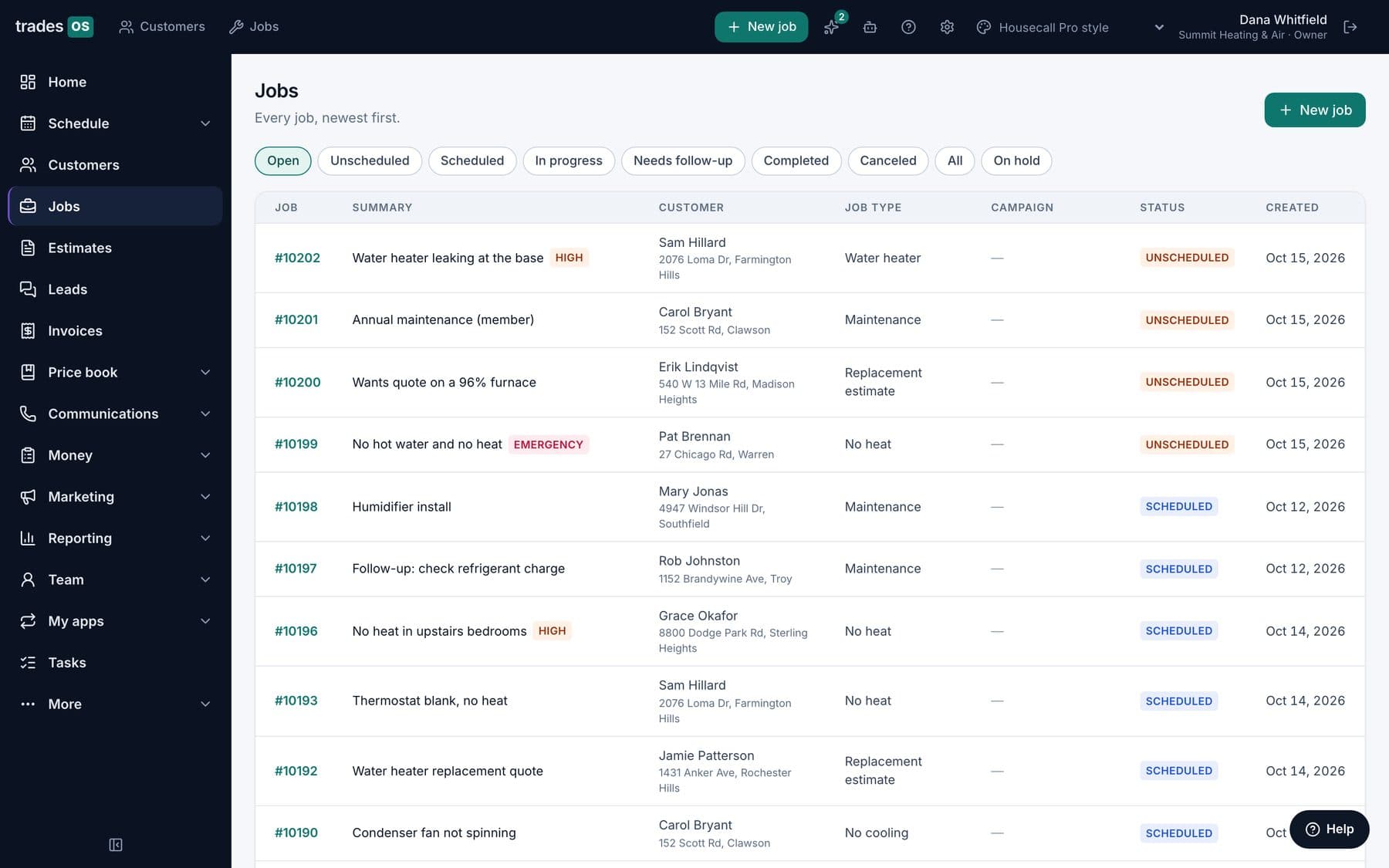
Menu words in this style:CustomersEstimatesJobsInvoicesService plans
Real TradesWork screens, demo data. Same jobs, customers, features, reports and integrations in every style; each person picks their own in Settings, and the company sets the default. The technician app uses the same words, in English and Spanish.
ServiceTitan, Housecall Pro, Jobber and FieldEdge are trademarks of their owners. TradesWork is not affiliated with them; the styles only arrange TradesWork's own menus and words the way their users know them.
The technician app uses the same words, in English and Spanish, so a tech who learned "service plan" doesn't have to start saying "membership".
Step 3: What you set up by hand
None of these come out of Housecall Pro in a form another system can use. List the ones you rely on, then rebuild:
| Item | Why it doesn't move | What to do in TradesWork |
|---|---|---|
| Equipment | Not in the files the importer reads | Add by hand or with a spreadsheet, from your Property Profile export7 |
| Estimates | Not imported yet | Keep the CSV; re-create open estimates you're still chasing |
| Photos and attachments | No bulk download in Housecall Pro9 | Download what you need job by job before you cancel |
| Automations and follow-ups | No usable export | Rebuild from the automation catalog |
| Templates, forms and checklists | No usable export | Rebuild with the form builder |
| Dashboards and saved reports | No usable export | Pick the reports you check weekly and rebuild those first |
| Pricing rules, such as plan discounts | No usable export | Rebuild with the pricing builder |
| Texting registration | Belongs to the old provider's account | Register for texting in TradesWork on day one |
| Reviews | Live on Google and Yelp | Nothing moves; point review requests at your Google profile |
Step 4: Run both side by side, and re-drop newer exports
Run both systems for 2 to 4 weeks. Move one crew first and book, dispatch and invoice their jobs in TradesWork. Then the office, then the remaining crews. Keep Housecall Pro open for reference, but stop creating new work in it crew by crew.
During the run, re-export customers and jobs from Housecall Pro once a week and drop them into TradesWork again. Records are matched by Housecall Pro's ID, or by name and address, or by price book code, so a re-drop updates what's there instead of creating duplicates. The one way to get duplicates is a file with no ID column where a name or address changed between exports. Keep the ID columns.
Step 5: Cards on file and service plan billing
This is the step most shops underestimate. Housecall Pro bills service plans to a card on file, which customers add when they accept a plan and can update in Housecall Pro's customer portal; when a payment is due, the card charges automatically.10 Those card details stay with Housecall Pro's payment processor. TradesWork never sees card numbers, so every customer re-saves a card: on their next payment, or through a link you send. Connect your own Stripe account in Settings, Integrations, Payment Processing first.
Do it in this order:
- 1
List every plan customer billed by card
With their next billing date, from Housecall Pro's service plan reports or the list you asked Support for.
- 2
Import their plans
Service plans arrive in TradesWork as memberships with billing held. Nobody is charged by TradesWork yet.
- 3
Send card links a week ahead
A week or so before each customer's next Housecall Pro charge, send the link to save a card in TradesWork.
- 4
Switch each customer the same day
Once a card is saved, start that membership's billing in TradesWork and cancel the plan in Housecall Pro the same day. Nobody is charged twice, and nobody gets missed.
Step 6: Phone numbers
Phone numbers move by porting, not by export. Start in week one, because ports take time. In TradesWork go to Settings, Phones, Numbers, Routing and Texting and choose Bring your numbers. Calls keep working at your old provider until the port completes.
If your numbers are on Housecall Pro Voice, its FAQ says your new carrier must start the port-out request, the process typically takes 1 to 3 weeks, and Housecall Pro keeps numbers for 60 days after you cancel or deactivate before releasing them. Custom SMS numbers can't be ported out.11 Its terms separately say your notification phone number is held for 90 days after you cancel.12 Either way, don't cancel the old phone service until the port shows done.
Step 7: QuickBooks cut-over
Housecall Pro syncs to QuickBooks Online on Essentials and Max,1 so your history is probably already in QuickBooks. Don't post it again. Connect the same QuickBooks Online company to TradesWork and set a cut-over date. Only invoices and payments created in TradesWork after that date post; imported history never does. Turn off Housecall Pro's QuickBooks sync on the same date, so the two systems never post the same day's work.
Step 8: Cancel Housecall Pro
Housecall Pro's terms say all subscriptions renew automatically unless terminated before renewal, and fees aren't prorated or refunded except as the terms allow.12 So the cheapest switch lands just before your renewal date. Its help center says cancellation starts in the in-app chat (the blue chat bubble, Support, Send us a message), the Billing team calls within 1 to 3 business days, and it can't be fully processed until they've spoken with the account owner by phone.13 After termination, the account is disabled within 14 days.12 Run your final exports first. Our cancellation guide has the details.
What switching costs
Switching isn't free, even when the software is cheaper. Fill in your own numbers:
| Cost | Example (6 techs, 3 office) | Your number |
|---|---|---|
| Overlap subscription | One month of Housecall Pro Max at $329 monthly while you also pay TradesWork1 | |
| Office hours for exports and cleanup | 8 to 16 hours | |
| Sandbox review with the office | 2 to 3 hours | |
| Re-collecting cards | 2 to 4 hours of texts and calls for 100 plan customers | |
| Re-entering equipment | Depends on your Property Profile file | |
| Phone port fees | Check your carrier | |
| Training | 2 hours per tech, 4 per office person, less with the Housecall Pro style on | |
| Renewal exposure | An annual plan renews automatically; no prorated refund12 |
The examples are illustrations, not measurements. Pick your switch date to keep the first and last rows small.
Housecall Pro to TradesWork checklist
- Renewal date noted and switch date set before it
- Customers, jobs, estimates, price book and equipment exported
- Invoice report export tried; service plan list requested in writing
- Phone port started in week one
- Sandbox import checked and leftover rows fixed
- Housecall Pro style set as the company default
- Automations, templates, checklists and equipment rebuilt
- QuickBooks connected with a cut-over date; old sync off
- Card links sent to service plan customers
- Re-dropped fresh exports during the side-by-side run
- Port shows done before old phone service is cancelled
- Cancellation confirmed in writing; original files archived
Footnotes
-
Housecall Pro pricing, checked October 15, 2026. https://www.housecallpro.com/pricing/ ↩ ↩2 ↩3 ↩4
-
Housecall Pro help, Invoices reporting. https://help.housecallpro.com/en/articles/9834481-invoices-reporting ↩
-
Housecall Pro help, Service plan reporting. https://help.housecallpro.com/en/articles/7068257-service-plan-reporting ↩ ↩2
-
Housecall Pro help, How to import and export jobs and customers. https://help.housecallpro.com/en/articles/6797101-how-to-import-export-jobs-and-customers ↩
-
Housecall Pro help, Job and estimate list reporting. https://help.housecallpro.com/en/articles/8241575-job-estimate-list-reporting ↩ ↩2
-
Housecall Pro help, Price book: import or export services and materials. https://help.housecallpro.com/en/articles/7173129-price-book-import-or-export-services-and-materials ↩
-
Housecall Pro help, Property Profile. https://help.housecallpro.com/en/articles/3703307-property-profile ↩ ↩2
-
Housecall Pro help, Payments export. https://help.housecallpro.com/en/articles/8028448-payments-export ↩
-
Housecall Pro help, Customer attachments section. https://help.housecallpro.com/en/articles/10371113-customer-attachments-section ↩
-
Housecall Pro help, Billing and payments for service plans. https://help.housecallpro.com/en/articles/4530621-billing-and-payments-for-service-plans ↩
-
Housecall Pro help, Voice FAQ. https://help.housecallpro.com/en/articles/6666356-voice-faq ↩
-
Housecall Pro terms and conditions. https://www.housecallpro.com/terms/ ↩ ↩2 ↩3 ↩4
-
Housecall Pro help, Billing and account management. https://help.housecallpro.com/en/articles/2366296-housecall-pro-billing-and-account-management ↩