Moving from Jobber to TradesWork takes about six weeks done properly: two to export, import and set up, then two to four running both systems before Jobber goes quiet. The hard parts aren't the clients or the price list. Those take minutes. They're the things that don't travel in a file: saved cards, phone numbers, automations and the date your Jobber term ends.
This guide is the plan, in order, with real TradesWork screens of every import step. It's honest about what TradesWork imports from Jobber and what it doesn't.
Is TradesWork the right move?
Be sure before you start. Jobber is cheaper for one- and two-person shops, easier to learn, and its Client Hub is a polished customer portal. Lawn, cleaning and pest crews who live on route days should know TradesWork doesn't have route-day scheduling yet. TradesWork is also new in 2026, with far fewer shops on it than Jobber, and consumer financing lenders aren't connected.
TradesWork fits 3 to 50 tech HVAC, plumbing and electrical shops that sell memberships and replacements, need equipment records, and don't want to pay for office logins. TradesWork vs Jobber lays out both sides.
The whole move on one page
Week -2
Decide and date it
Find your Jobber end date and renewal notice deadline. Start the TradesWork trial. List automations, templates and recurring work to rebuild.
Week -1
Export and sandbox import
Run every Jobber export as an admin. Import into a sandbox company, check the preview, fix rejected rows. Request the phone port.
Week 1
Real import and first crew
Import into your real company. Set up memberships and price book details. One crew works jobs in TradesWork; everyone else stays on Jobber.
Week 2
Office moves
Office books, dispatches and invoices in TradesWork. Re-drop newer Jobber exports. Start re-collecting cards from autopay customers.
Week 3
Everyone moves
Remaining crews switch. Set the QuickBooks cutover date. Update booking and payment links. Confirm the port is done.
Week 4
Jobber goes read-only
No new work in Jobber. Final exports. Cancel in Account and Billing, timed to your term. Keep the archive.
Step 1: Find your Jobber end date
Everything hangs on this date. In Jobber, open the gear icon, Account and Billing and note which billing option you're on.1
- Monthly: access runs to the end of the current billing period.1
- Annual or monthly 1-year commitment: access runs to the end of the full term; the end-of-term date is listed under Account and Billing.1 Cancelling mid-term doesn't stop the bills or refund the prepayment.2
- Annual plans must be cancelled at least 30 days before the renewal date, and fees are non-refundable with no credits for partial months.3
Work backwards from that date. Your side-by-side run should finish a week or so before it.
Step 2: Export from Jobber
Follow the Jobber export guide, which illustrates each click path. Here is the one export that matters most, so you can see the pattern:
- 1Clients
- 2More Actions
- 3Export Clients
- 4CSV
The short version, run as an admin:
- Clients: Clients, More Actions, Export Clients, CSV. Includes property addresses, tags and custom fields, in files of up to 1,500 rows.4
- Products and services: gear icon, Settings, Products & Services, Export to CSV.5
- Reports: Insights, Reports, then One-off jobs, Recurring jobs, Visits, Quotes, Invoices, Transactions list and Aged receivables. For each, pick All time, export, and choose All columns.6
- Cards on file: the Clients report with the Payment method on file column.7
Jobber's terms put backups on you, and don't describe an export Jobber will run for you at termination.3 Keep these files whatever happens next.
What comes across
Here's each Jobber file and what it becomes in TradesWork. This comes straight from the importer's Jobber layouts.
- clients.csvImportsCustomers, each address as a service locationName, company, email, phone and address. Tags and a second phone number go into the customer's notes. Company-only clients come in as commercial.
- products-services.csvImportsPrice bookName, description, price, cost, taxable and category.
- one-off-jobs.csvImportsJob historyJob number, client, title, status and dates. The old total is kept on the job; line items stay in your file.
- recurring-jobs.csvPartlyJob history (not plans)Recurring work arrives as past jobs. Set up memberships or recurring visits by hand.
- invoices.csvImportsInvoice history with balancesNumber, dates, total and paid amount. What's still owed stays open. Never posted to accounting.
- quotes.csvKeep as archiveNothing yetQuotes stay in Jobber for now. Keep the report and PDFs of open quotes.
- visits, requests, transactionsKeep as archiveArchiveYour record for warranty calls, disputes and cutover checks.
- clients-report.csvKeep as archiveCard re-collection listPayment method on file column. The cards themselves can't move.
Bring it into TradesWork
Under Settings, Integrations, Import from ServiceTitan, press Jobber in the row of source buttons. Then work through these steps. Click each one to see the real screen.
1. Pick where you're coming from
The importer starts with a row of source buttons: ServiceTitan, Housecall Pro, Jobber, FieldEdge, or another system or a spreadsheet. Press Jobber and the page shows Jobber's export steps, what comes across and what doesn't. This screen shows another source selected; the layout is the same.
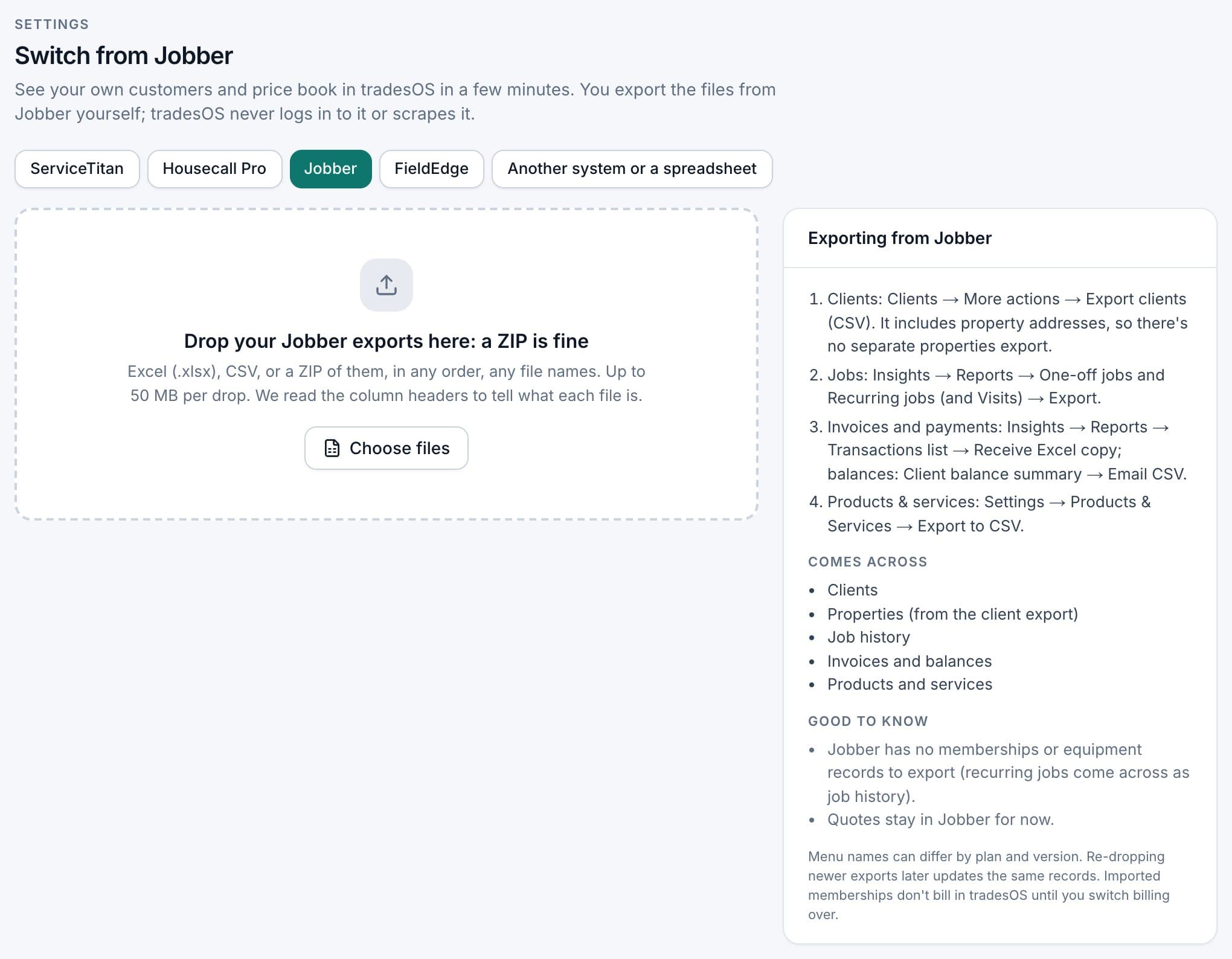
You need the Owner or Admin role. There's no undo button, which is why the preview and the sandbox exist. When the sandbox looks right, drop the same files again and choose your real company.
Your team won't have to relearn the menus
Most of the pain in switching software is the office learning where everything moved. TradesWork has four look-and-feel styles. In the Jobber style, menus say Clients, Requests, Quotes, Jobs, Visits and Invoices, the way your team already talks.

Menu words in this style:ClientsRequestsQuotesJobsVisitsInvoices
Real TradesWork screens, demo data. Same jobs, customers, features, reports and integrations in every style; each person picks their own in Settings, and the company sets the default. The technician app uses the same words, in English and Spanish.
ServiceTitan, Housecall Pro, Jobber and FieldEdge are trademarks of their owners. TradesWork is not affiliated with them; the styles only arrange TradesWork's own menus and words the way their users know them.
Each person picks their own style in the top bar or under Settings, Your Account, Appearance, and the company sets the default for new users. A style changes the menu layout and the words only: the data, features and reports are the same in every style. The technician app uses the same words, in English and Spanish.
What to set up by hand
Jobber doesn't keep everything TradesWork can, so a few things start fresh. Make a list in Jobber before you lose access:
- Memberships. Jobber has no membership records to export, and recurring jobs arrive as job history. If you want maintenance memberships in TradesWork (Pro and up), set them up once your customers are in.
- Equipment. Jobber doesn't keep equipment records. Add equipment as technicians visit.
- Open quotes. Quotes stay in Jobber for now. Recreate the ones you're still chasing, using the Quotes report and PDFs.
- Automations and follow-ups, like quote and invoice reminders, plus templates and checklists.
- Online booking. Replace Jobber's request form on your website and Google profile with TradesWork online booking (Settings, Dispatch Board, Arrival Windows & Online Booking).
Reviews stay on Google and Yelp, where they already live.
Run both, and re-drop newer exports
Run side by side for two to four weeks. Move one crew first, then the office, then everyone.
While Jobber is still in use, export again and drop the newer files. TradesWork matches records by Jobber's ID, or by name and address, or by price book code, so it updates the same records instead of creating duplicates. Re-drops add and update; they never delete. Jobber's Report Scheduler app can email Client contact info, Client properties, Invoices, One-off jobs, Visits and Recurring jobs as CSV daily or weekly, which makes the re-drop routine.8
When the new system has run cleanly, cancel in Jobber's Account and Billing and keep exporting until access ends. Closing the account is a separate, final step: once it's closed, Jobber says the information "will no longer be retrievable."9 See how to cancel Jobber.
Payments, phones and QuickBooks
Saved cards. Jobber stores cards "securely through your Jobber Payments account,"10 and its help center doesn't describe exporting them. Connect Stripe in TradesWork (Settings, Integrations, Payment Processing), then ask customers to save a card on their next payment or from a link you send. TradesWork never sees card numbers. Start with anyone on automatic payments, using the Clients report.7
Phone numbers. Start the port in week one. It takes one to two weeks. Go to Settings, Phones, Numbers, Routing & Texting, Bring your numbers (port-in). Calls keep working at your old provider until the port is done, so never cancel the old service before then.
Jobber's dedicated texting number is a separate case. Jobber says it's "meant for text messages only" and "cannot be changed" once selected, and its help center doesn't describe porting it out.11 Ask Jobber support before you plan around it. Text-message registration starts fresh in TradesWork either way.
QuickBooks. Jobber syncs invoices and payments one way into QuickBooks Online, each one time.12 So your history is already in QuickBooks, and posting it again would duplicate it. Connect the same QuickBooks Online company to TradesWork and set a cutover date. Only invoices and payments after that date post. Pick a clean boundary, such as the first day nobody creates invoices in Jobber, and tell your bookkeeper.
What switching costs you
Your real cost isn't only the new subscription. Fill in your own numbers. The example column is a hypothetical 6-tech shop, not a quote.
| Cost | How to estimate it | Example (hypothetical) |
|---|---|---|
| Overlap subscription | Months you pay both Jobber and TradesWork | About 1 month of each, if timed to your term |
| Office time for exports and cleanup | Hours to export, fix rejected rows and spot-check | Example: 8 to 12 office hours |
| Re-collecting cards | Customers on autopay x minutes per follow-up | Example: 40 customers x 5 minutes |
| Phone port fees | Check your carrier | Your number |
| Training | Hours per tech and office person (less with the Jobber style) | Example: 2 hours per tech, 4 per office person |
| Rebuilding automations and memberships | Count from your Jobber list | Your number |
| Early-termination exposure | On a 1-year commitment you pay through the term; annual prepaid isn't refunded2 | Your remaining months x your Jobber monthly price |
The biggest lever is timing. TradesWork bills month-to-month, with a 14-day trial and no card, so you can start the trial about six weeks before your Jobber term ends and keep the overlap to a few weeks.
Checklist
Before you stop using Jobber
- Jobber end date and 30-day annual notice date in your calendar
- Clients, products and services and all report CSVs exported and stored outside Jobber
- Open quote and unpaid invoice PDFs saved
- Sandbox import checked, rejected rows fixed
- Real import done; spot-checked against Jobber screens
- Each person's look and feel set (Familiar to Jobber users if they want it)
- Memberships, open quotes, automations and templates rebuilt
- Phone port shows done before the old service is cancelled
- Stripe connected and cards re-collected from autopay customers
- QuickBooks connected with a cutover date
- Booking and payment links updated on website and Google profile
- Final exports run before access ends
Want to see your own clients and prices in TradesWork before deciding? Start a trial and import into a sandbox company. Prices are on the pricing page, and the switch page covers other systems.
Footnotes
-
Jobber help center, Cancel Your Jobber Subscription. https://help.getjobber.com/en/articles/cancel-your-jobber-subscription/ ↩ ↩2 ↩3
-
Jobber pricing page, billing options. https://www.getjobber.com/pricing/ ↩ ↩2
-
Jobber Terms of Service, sections 3.2, 3.3, 5.1 and 5.6, last updated September 22, 2026. https://www.getjobber.com/terms-of-service/ ↩ ↩2 ↩3
-
Jobber help center, Export Client Information. https://help.getjobber.com/en/articles/export-client-information/ ↩ ↩2
-
Jobber help center, Products & Services List. https://help.getjobber.com/en/articles/products-services-list/ ↩
-
Jobber help center, Reports Basics. https://help.getjobber.com/en/articles/reports-basics/ ↩
-
Jobber help center, Clients Report. https://help.getjobber.com/hc/en-us/articles/28490419170071-Clients-Report ↩ ↩2
-
Jobber help center, Report Scheduler App. https://help.getjobber.com/hc/en-us/articles/4500001656471-Report-Scheduler-App ↩
-
Jobber help center, How Do I Permanently Close My Account? https://help.getjobber.com/en/articles/how-do-i-permanently-close-my-account/ ↩
-
Jobber help center, Saving and Charging Payment Methods with Jobber Payments. https://help.getjobber.com/hc/en-us/articles/115009611087-Saving-and-Charging-Payment-Methods-with-Jobber-Payments ↩
-
Jobber help center, Dedicated Phone Number. https://help.getjobber.com/hc/en-us/articles/360047029094-Dedicated-Phone-Number ↩
-
Jobber help center, How Items Sync Between Jobber and QuickBooks Online. https://help.getjobber.com/en/articles/how-items-sync-between-jobber-and-quickbooks-online/ ↩